
How to Install an APK File on Android: Step-by-Step Guide
A complete, up-to-date walkthrough for installing APK files on Android, including the unknown-sources permission steps that changed after Android 8.

Installing an app from an APK file instead of the Google Play Store is a routine part of using Android — it's how you get apps that aren't listed in your region, try a beta version, or install something directly from a developer's site. The process is straightforward, but Android's permission screens have changed enough over the years that it's worth walking through exactly how to install apk files correctly on a modern device.
Step 1: Enable "Install unknown apps" for your source
Older versions of Android had a single global switch called "Unknown sources" that you turned on once and forgot about. Starting with Android 8.0 (Oreo), Google replaced that global toggle with a per-app permission. Instead of unlocking installs for your whole device, you now grant permission to one specific app — your browser, your file manager, or whatever you're using to open the APK — to install software. Everything else on your device stays blocked by default.
This is a meaningful safety improvement: no other app can quietly trigger an install without you specifically approving that app as an install source first.
To enable it:
- Open Settings.
- Tap Apps (on some devices: Apps & notifications → Advanced).
- Select Special app access, then Install unknown apps.
- Choose the app you'll use to download or open the APK — usually Chrome or your device's Files/file manager app.
- Toggle on Allow from this source.
The exact menu wording varies slightly by manufacturer (Samsung, Xiaomi, and others adjust the labeling), but the path is consistently under Settings > Apps > Special app access > Install unknown apps on Android 8 and later. If your device runs an older version of Android, look instead for a single Unknown sources checkbox under Settings > Security.
Step 2: Download the APK file
Download the file from a source you trust — ideally the developer's official site or a reputable APK repository that shows clear version numbers, file sizes, and update history. Your browser will typically save the file to the Downloads folder automatically, and you may see a notification once the download finishes.
Step 3: Locate the downloaded file
You can open the file two ways:
- From the notification shade — tap the download-complete notification right after it finishes.
- From a file manager — open your device's file manager app (often called "Files" or "My Files"), navigate to the Download folder, and tap the APK file.
Step 4: Tap through the install prompt
Tapping the APK file opens Android's installer screen, which shows the app's name, icon, and the permissions it's requesting. Review this screen before continuing — it's your chance to catch anything that looks disproportionate for the type of app you're installing.
- Tap Install.
- Wait for the progress bar to complete — this usually takes just a few seconds.
- Tap Open to launch the app immediately, or Done to return to your home screen.
Step 5: Grant any runtime permissions
Modern Android apps typically ask for specific permissions — camera, storage, location, and so on — the first time you actually use a feature that needs them, rather than all at once during install. Grant only what makes sense for the app's purpose; you can always review and change these later under Settings > Apps > [app name] > Permissions.
Alternative method: installing via ADB
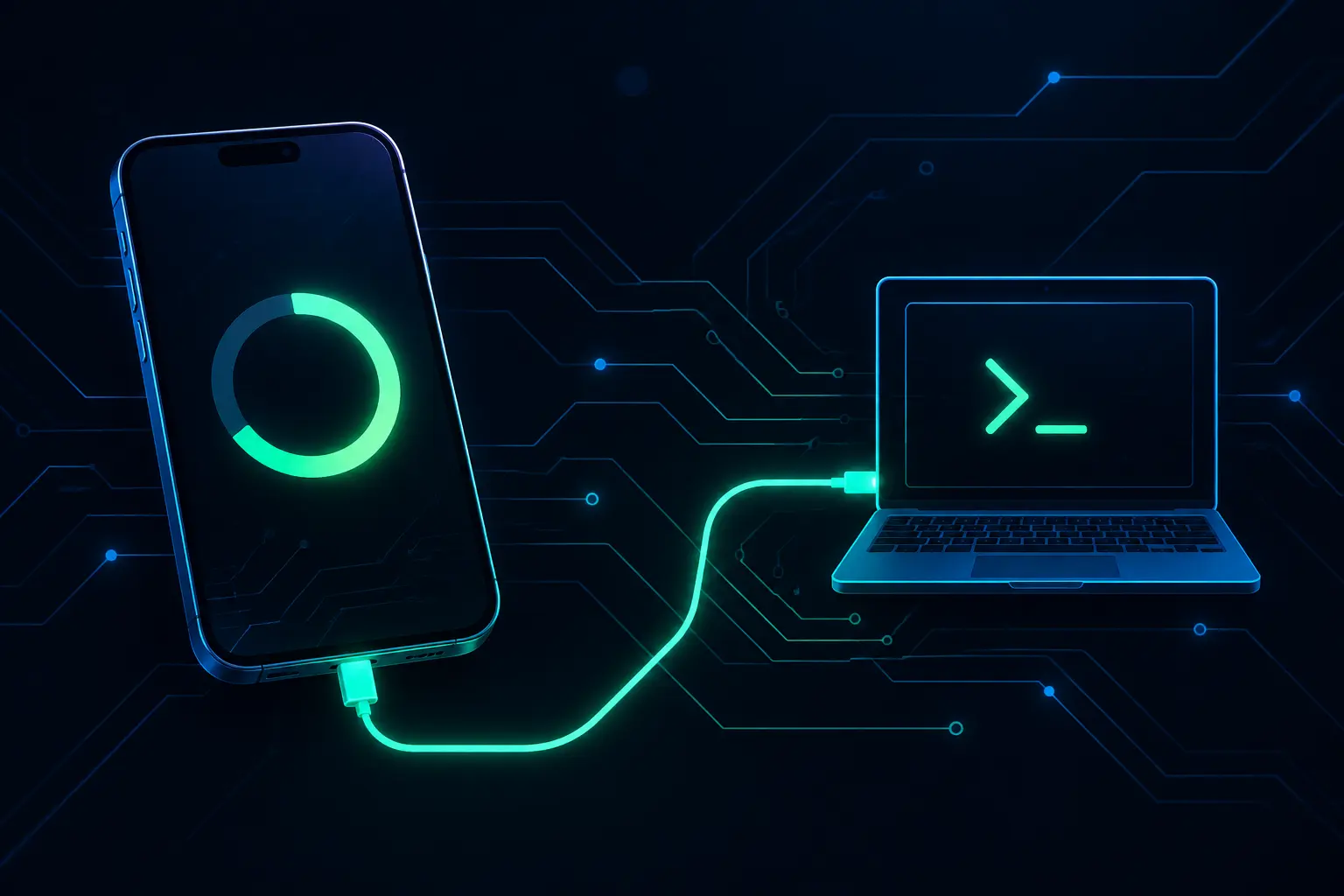
If you're comfortable with a computer and a USB cable, Android Debug Bridge (ADB) offers a faster and, in some ways, more transparent way to install APKs — and it's the standard method developers and testers use. It skips the browser and file-manager steps entirely and installs the file directly from your computer.
To use it:
- Download the Android SDK Platform Tools package from Google's official developer site and unzip it on your computer.
- On your Android device, go to Settings > About phone and tap Build number seven times to unlock Developer options.
- Go to Settings > System > Developer options and enable USB debugging.
- Connect your device to your computer with a USB cable, and approve the "Allow USB debugging" prompt that appears on your phone.
- Open a terminal or command prompt in the folder containing the platform-tools files, and place the APK you want to install in that same folder.
- Run:
adb install app.apkADB reports success or failure directly in the terminal, which is often more informative than the vague "App not installed" message you sometimes get from the on-device installer. A few flags are worth knowing:
adb install -r app.apk— reinstalls over an existing app while keeping its data, useful when a plain install fails because the app is already present.adb install -d app.apk— allows installing a version with a lower version code than what's currently installed (a downgrade), which the standard installer blocks outright.adb -s <device-id> install app.apk— targets a specific device when you have more than one connected or an emulator running alongside a physical phone.
ADB is particularly useful for installing on devices with awkward or missing touchscreens — like an Android TV box you don't want to navigate with a remote — or for quickly testing multiple builds without repeatedly transferring files by hand.
Installing on Android TV and Chromebooks
The core install mechanism is the same everywhere — Android's package manager doesn't care what kind of screen it's talking to — but the practical steps differ enough to call out separately.
Android TV
Android TV devices rarely have a built-in browser or file manager suited to downloading files directly, so the two common approaches are: sideloading a file manager app (such as one available directly through the Play Store on the TV itself) and downloading the APK through that, or pushing the file over from a computer via adb install after enabling USB/network debugging on the TV device under its own Developer options menu (accessed the same way, via tapping the build number repeatedly). Some Android TV boxes also support installing over a local network address with adb connect <device-ip>:5555 before running the install command, which avoids needing a cable at all. As with a phone, "Install unknown apps" still needs to be granted to whichever app performs the install.
Chromebooks
Chromebooks that support the Google Play Store run Android apps inside a contained Android subsystem, and on most models released since roughly 2020, that subsystem accepts direct APK installs without needing to enable ChromeOS Developer Mode. The straightforward path is to enable Linux (Settings → Advanced → Developer), which gives you a terminal environment, install the Android SDK platform tools inside it, and use adb install exactly as you would from a regular computer, since the Chromebook can connect ADB to its own Android container. One practical wrinkle: many Chromebooks run on Intel or AMD processors rather than ARM, and some APKs — particularly games with native code libraries — are built ARM-only, meaning they simply won't run even if the install itself succeeds. Checking whether a download offers a universal or ARM64/x86_64 build in advance avoids a wasted install.
What's actually happening during installation
It's worth understanding what Android's Package Manager does in the moments between tapping "Install" and the app appearing on your home screen — it explains why some installs fail with cryptic errors and why the process is trustworthy even outside the Play Store.
- Parsing. The system opens the APK (itself a ZIP-format archive) and reads
AndroidManifest.xmlto learn the app's package name, declared permissions, minimum supported Android version, and the components it needs to register. - Signature verification. The Package Manager checks the app's cryptographic signature, stored either per-file (the older v1 scheme) or across the whole APK as a block (the newer v2 and v3 schemes introduced for stronger, faster verification). It calculates a hash of the package contents and confirms it matches what the developer's signing certificate attests to. If this fails — because the file was corrupted, incompletely downloaded, or genuinely tampered with — installation is refused outright, before any code from the app ever runs.
- Compatibility and conflict checks. The system compares the app's declared minimum SDK version against the device's Android version, and checks whether a package with the same name is already installed — and if so, whether this new file's signature matches the existing one closely enough to be treated as an update rather than a rejected conflict.
- Resource extraction and optimization. Assuming the checks pass, the system copies the APK into the appropriate storage location, extracts native libraries for the device's processor architecture where needed, and — depending on the Android version and device — may pre-compile or optimize parts of the app's code ahead of first launch to improve startup performance.
- Registration. Finally, the app's components (activities, services, permissions it can request) are registered with the system, an icon is added to the launcher, and the app becomes available to open.
This is the same pipeline the Play Store itself ultimately hands files off to — the Play Store's role is mostly what happens before this point (review, malware scanning, distribution), not the installation mechanism itself, which is identical either way.
A note on security
Before installing, it's worth a quick sanity check: does the download source list a clear version number and file size? Does the requested permission list match what the app is supposed to do? Running the file through a mobile antivirus scanner before installing is a reasonable extra step, especially for apps from smaller or unfamiliar sites. Keeping Google Play Protect enabled is also worthwhile — it scans sideloaded apps in addition to ones installed from the Play Store.
Troubleshooting: "App not installed" error
If Android refuses to install the file and shows an "App not installed" error, the most common causes are a corrupted or incomplete download, insufficient storage space, or — if you're updating an existing app — a signature mismatch between the new file and the version already on your device. We cover the update-specific version of this problem, including package and signature conflicts, in our dedicated guide on updating an APK without Google Play. If a fresh install fails, try re-downloading the file first, since a partial or interrupted download is the single most common cause. Installing via ADB, as described above, often surfaces a more specific error code (such as INSTALL_FAILED_INSUFFICIENT_STORAGE or INSTALL_FAILED_UPDATE_INCOMPATIBLE) that pinpoints the exact cause faster than the on-device dialog does.
Final thoughts
Installing an APK on Android comes down to five steps: grant install permission to the app you're using to open the file, download it, find it, tap through the install prompt, and approve any runtime permissions afterward. The unknown-sources model changed significantly with Android 8, moving from one global switch to a safer, per-app permission — but once you know where that setting lives, the rest of the process is quick and consistent across most devices, whether you're doing it by hand on a phone, over ADB from a computer, or on a TV box or Chromebook that handles the same underlying package manager checks a little differently.
Browse SolidAPKs
More from the Blog
All articles
Top 10 Best Android Games of 2026: Must-Play Titles
8 min read

How to Download and Install APK Files Safely on Android
6 min read

5 Essential Android Apps Every User Should Have in 2026
5 min read

Is It Safe to Download APK Files? A Complete Safety Guide
8 min read

Fix "App Not Installed" Error on Android: Complete Troubleshooting Guide
7 min read

What Is an APK File? A Complete Beginner's Guide
7 min read

How to Update an APK File on Android (Without Google Play)
6 min read

Best (Safe) Mod APK Sites in 2026: What to Look For
7 min read

Is HappyMod Safe? What You Need to Know
6 min read

Is Magis TV Safe and Legal? What You Should Know
7 min read

CapCut vs InShot: Which Video Editor Should You Use?
7 min read