
Is It Safe to Download APK Files? A Complete Safety Guide
A practical, myth-busting guide to APK safety — what actually makes a download risky, how to check a file before installing, and habits that keep your device secure.

If you have ever hovered over a download button and wondered, "is APK safe?" — you are asking the right question. The short answer is: the APK format itself is not dangerous, but where you get the file from absolutely matters. This guide breaks down what actually makes an APK risky, how to check one before you install it, and how to build habits that keep your phone genuinely safe without giving up the flexibility that makes Android great.
What an APK File Actually Is
APK stands for Android Package Kit, and it is simply the container format Android uses to install any app — including the ones you get straight from the Google Play Store. Every app on your phone arrived as an APK at some point; Play Store installs just handle the download and verification automatically in the background. So the file format is not the source of risk. The risk comes from who packaged the file and where you downloaded it from.
Is APK Safe to Download? It Depends on the Source
Security researchers consistently point to the same conclusion: an APK from a trustworthy, verified source carries very little risk, while an APK from an unknown or shady site can carry a lot. Google Play Store remains the safest default because it scans every submitted app before publishing it and then continues to monitor apps after release through Google Play Protect. That does not mean sideloading — installing an APK outside the Play Store — is inherently unsafe. It means you need to apply your own scrutiny where the platform normally would.
Reputable third-party sources, like established APK repositories that verify uploads, review developer information, and check files before listing them, significantly reduce the risk compared to random forum links or pop-up "download now" buttons.
The Real Risks vs. the Overblown Fears
It is worth separating genuine threats from exaggerated ones:
- Real risk — repackaged malware: Bad actors take a legitimate, popular app, inject malicious code, and redistribute it under the same name. This is the most common way people get infected through APKs.
- Real risk — fake apps: Clones designed to look like a real app (a bank app, a popular game) purely to steal login credentials or payment details.
- Real risk — excessive permissions: Apps that request access far beyond what they need (a flashlight app asking for your contacts and SMS, for example) are a red flag for data harvesting.
- Overblown fear — "all sideloaded apps are malware": Millions of legitimate APKs are distributed outside the Play Store every day for entirely valid reasons — regional restrictions, beta testing, open-source distribution — and the vast majority are safe when sourced carefully.
- Overblown fear — "the .apk extension itself is a virus": The file format cannot infect you on its own. Risk only materializes when you install a package containing malicious code.
How to Read an Android Permission Prompt Properly
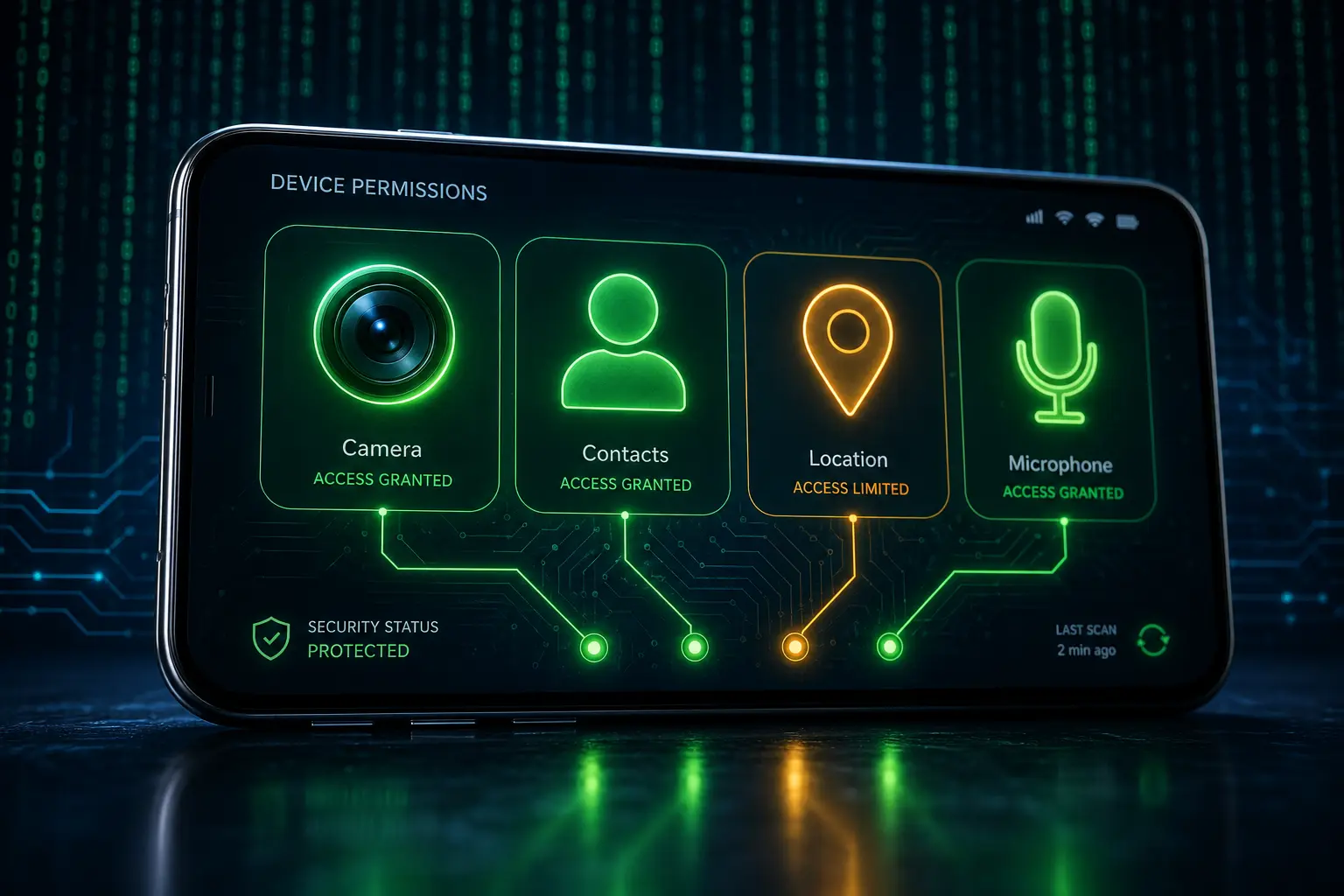
Most people tap through permission prompts without really reading them, but understanding what Android is actually asking matters more than any other single check. Android groups permissions into a few protection levels, and knowing the difference tells you how much scrutiny a given request deserves:
- Normal permissions cover things with essentially no privacy impact — checking your Wi-Fi connection state or network access, for example. Android grants these automatically at install time without asking you, because there is little meaningful risk either way.
- Dangerous permissions are the ones that actually touch your personal data or hardware: camera, microphone, contacts, precise location, SMS, call logs, and storage. These require an explicit tap-to-allow prompt, usually the first time the app tries to use that feature. This is the category worth reading carefully every time.
- Signature permissions are restricted to apps signed with the same certificate as the system component that defines the permission. You won't typically be prompted for these as a regular user.
The practical rule of thumb: ask whether a requested permission has an obvious, direct connection to what the app claims to do. A note-taking app asking for storage access makes sense. A wallpaper app asking for your call log or accessibility service access does not — accessibility permission in particular deserves extra suspicion, since it is frequently abused by banking trojans to read your screen and intercept codes. If an app's permission list reads more like a data-harvesting wishlist than a feature list, walk away.
APK Signature Verification for Technical Readers
Every legitimate APK carries a cryptographic signature, and Android refuses to install or update a package if that signature does not check out — this is the mechanism that stops someone from quietly swapping a legitimate app's update for a malicious one signed by a different key.
Android has supported several signing schemes over the years, and modern APKs typically carry more than one simultaneously for backward compatibility: the original v1 scheme, based on signed JAR files, leaves some ZIP metadata unprotected; v2 (Android 7.0) closes that gap by treating the whole APK as one signed blob, so any modification anywhere invalidates the signature; v3 (Android 9.0) adds support for key rotation; and v4 adds a Merkle-tree-based streaming verification model for large installs.
For a technical reader who wants to check a signature manually, Android's own apksigner verify tool (part of the Android SDK build-tools) reports which schemes an APK uses and whether the signature is valid. Comparing the resulting certificate fingerprint against a known-good copy of the same app — one installed from the Play Store, for instance — is a reliable way to confirm a sideloaded file genuinely came from the same developer.
Common Social-Engineering Tactics Used to Distribute Fake APKs
A growing share of malicious APKs never rely on a technical exploit at all — they rely on convincing you to install them yourself. Recognizing the pattern is often more useful than any scanner:
- Fake "update required" prompts. A pop-up, often triggered on a compromised or malicious website, claims your browser, video player, or banking app needs an urgent update and pushes you straight to an APK download. Legitimate apps and browsers never ask you to sideload an update through a random pop-up.
- Cloned or near-identical websites. Attackers register a domain that looks almost right — a swapped letter, an extra word, a different top-level domain — and rebuild a convincing copy of a bank's site or a popular app's download page. Victims are guided to "re-authenticate" or "install the new app," which is actually a banking trojan disguised as an update.
- Urgency and authority cues. Fake update and phishing pages lean heavily on familiar logos and branding from Google, a bank, or a well-known developer, paired with urgent language designed to short-circuit careful thinking.
- Ad-network abuse. Malicious actors buy legitimate-looking ad placements that lead to fake app stores or direct APK downloads, sometimes without ever needing to compromise a real website.
The defense is largely the same in every case: never install an app because a pop-up told you to, and always navigate to a download source directly rather than through a link someone else sent you.
How to Check an APK File Before Installing
Before you tap "install," a few checks take less than five minutes and dramatically reduce risk:
- Scan it with VirusTotal. VirusTotal lets you upload an APK file (or paste a link) and checks it against dozens of antivirus engines simultaneously. It is free and one of the most widely trusted tools for this exact purpose.
- Review the developer. Look up the developer name and check whether they have a consistent history, a real website, and other published apps. A blank or newly created "developer" with no history is a warning sign.
- Check the permissions requested. During or after installation, Android shows you what an app can access. If a simple utility app wants access to your camera, microphone, contacts, and location all at once, ask why.
- Compare the file size and version to the official app. A repackaged malicious APK is sometimes noticeably larger or smaller than the legitimate version, or claims to be a version number that does not exist.
- Verify the source domain. Stick to sites with an established reputation rather than random redirect links, torrent sites, or ads promising a "cracked" or "unlocked" version of a paid app — these are among the most common vectors for infected files.
How Google Play Protect Helps, Even Outside the Play Store
One detail many users do not realize: Google Play Protect does not stop working once you leave the Play Store. Play Protect runs on-device scanning for apps regardless of where they came from — websites, file managers, alternative stores, or messaging apps — and Google has continued to expand this with real-time, code-level scanning that checks apps against cloud-based threat intelligence at the moment of installation. If Play Protect flags an app as harmful, it can warn you or block the install outright, even for a sideloaded APK. Keeping Play Protect enabled is one of the simplest, most effective safety nets available, and disabling it purely to force an install through is a habit worth avoiding.
Antivirus and Mobile Security Apps vs. Manual Checking
It is worth being honest about what a mobile antivirus or security app adds on top of the manual checks above, since the two approaches solve slightly different problems. A dedicated security app runs continuous, real-time scanning in the background and checks files against its own signature and behavioral databases the moment they land on your device — catching newer threats that a one-time manual VirusTotal check might miss if it was run before the malware database was updated. That makes it a reasonable extra layer, especially if you sideload frequently.
What it does not replace is judgment. No antivirus engine catches every threat, and brand-new malware families routinely slip past automated detection for a period before signatures catch up — which is exactly why manual checks like source reputation and permission review still matter even if you run a security app. The two approaches are complementary: automated scanning catches known bad code quickly, while manual scrutiny catches the social-engineering tactics a scanner was never designed to flag.
Practical Safety Habits That Actually Work
- Keep Google Play Protect turned on at all times, including for apps installed outside the Play Store.
- Only enable "Install unknown apps" for the specific browser or file manager you are actively using.
- Download from sources with a track record — established APK sites, official developer pages, or open-source repositories like GitHub — rather than the first search result.
- Keep your Android version and security patches up to date.
- Be skeptical of anything promising a paid app "for free" — these are disproportionately used to distribute malware.
- Never install an app because a pop-up or in-app message told you to.
The single biggest factor in APK safety is not the file extension — it's the source. A cautious approach to where you download from does more to protect you than any other single habit.
Final Thoughts
APK files are not something to fear; they are simply how every Android app is packaged and installed, Play Store or not. The real safeguard is a habit of checking sources, reviewing permissions, and leaning on tools like VirusTotal and Google Play Protect rather than installing on blind trust. At SolidAPKs, every listing goes through a verification process before it's published, so you can download with confidence — but the habits in this guide are worth carrying with you no matter where you get your apps.
Browse SolidAPKs
More from the Blog
All articles
Top 10 Best Android Games of 2026: Must-Play Titles
8 min read

How to Download and Install APK Files Safely on Android
6 min read

5 Essential Android Apps Every User Should Have in 2026
5 min read

Fix "App Not Installed" Error on Android: Complete Troubleshooting Guide
7 min read

What Is an APK File? A Complete Beginner's Guide
7 min read

How to Update an APK File on Android (Without Google Play)
6 min read

Best (Safe) Mod APK Sites in 2026: What to Look For
7 min read

How to Install an APK File on Android: Step-by-Step Guide
7 min read

Is HappyMod Safe? What You Need to Know
6 min read

Is Magis TV Safe and Legal? What You Should Know
7 min read

CapCut vs InShot: Which Video Editor Should You Use?
7 min read